Remote Work Planner, KDP Interior: What Most Buyers Overlook Before Downloading
The shift to working from home has changed how millions of people organize their days. If you have searched for a Remote Work Planner, KDP Interior, you have likely discovered that there is no shortage of options. But not all interiors are created equal, and many buyers end up with a file that looks promising at first glance yet fails in daily use. Understanding what makes a planner truly functional—and what common mistakes to avoid—can save you time, money, and frustration.
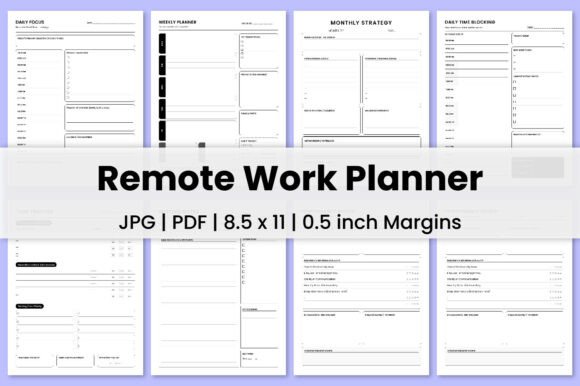
A Remote Work Planner, KDP Interior is essentially a ready-to-upload PDF file designed for Amazon's Kindle Direct Publishing platform. It typically includes structured pages for goal setting, weekly and daily planning, time blocking, task tracking, meeting notes, and performance reviews. The one we are examining comes with 120 pages, high-resolution 300 DPI output, no bleed, and a standard 8.5″ x 11″ trim size. It also includes both a single PDF and individual PNG files. But having these features on paper and having a planner that actually supports remote productivity are two different things.
Mistake One: Choosing Based on Page Count Alone
Many people assume that more pages equal more value. A 120-page interior sounds substantial, and it can be. But the real question is how those pages are distributed. If a planner dedicates too many pages to flashy intro sections or repetitive layouts, you end up with less usable space for actual work.
For example, a planner that offers 48 daily planner pages but only 10 time-blocking pages may not suit someone whose day depends on structured intervals. Similarly, if meeting notes take up 10 pages but you only attend two meetings a week, those pages become wasted real estate.
What to check instead: Look at the page breakdown before you buy. A well-balanced interior should reflect how you actually work. The planner mentioned here includes 12 monthly goals pages, 24 weekly planner pages, 48 daily planner pages, 10 time-blocking pages, 10 task tracker pages, 10 meeting notes pages, and 5 monthly performance reviews. That distribution makes sense for someone who needs both big-picture planning and granular daily management. If your workflow leans heavily toward task tracking rather than daily reflection, you may want a different ratio.
Mistake Two: Overlooking Bleed and Trim Specifications
One of the most overlooked details in KDP interiors is bleed. A file marked no bleed means it is designed for a specific trim size without extra margin for printing edge-to-edge. If you try to use a no-bleed interior in a project that requires bleed, your content may get cut off or look misaligned. The same applies if you attempt to resize it for another platform.
The 8.5″ x 11″ size is a standard letter size, which works well for both print and digital use. But if you plan to use this planner in a binder or a different notebook format, you will need to verify that the margins and layout still make sense. Many buyers assume that any PDF can be resized easily, but scaling changes spacing, line widths, and overall readability.
Better approach: Always confirm your intended use case before purchasing. If you are uploading to KDP, stick with the specified trim size and no-bleed setting. If you want flexibility, look for interiors that offer multiple size options or include editable file formats.
Mistake Three: Ignoring Resolution and Print Quality
A PDF that is labeled high resolution may still vary in actual quality. The file mentioned here specifies 300 DPI, which is the standard for professional print. Lower resolutions, such as 72 DPI or 150 DPI, will result in blurry lines, pixelated text, and an overall unprofessional appearance. This is especially problematic for planners where lines, grids, and small text need to be crisp.
Buyers sometimes assume that any PDF will print well, but that is not true. A file that looks sharp on screen can become fuzzy when printed, especially if it was compressed or exported at a low resolution. This affects not only aesthetics but also usability. If you cannot clearly see the boundaries of a time block or a task checkbox, the planner becomes less effective.
What to verify: Before purchasing, check the file specifications. 300 DPI is the benchmark. Also, look for mention of PNG files. PNGs at 300 DPI can be useful if you want to print individual pages or modify them in an image editor. The inclusion of both PDF and PNG files, as seen in this interior, gives you flexibility that a standalone PDF does not.
Mistake Four: Underestimating the Value of Customizable Pages
Many planners are rigid. They assume that every remote worker has the same routine. In reality, your remote work setup may involve irregular hours, different tools, or unique priorities. A planner that does not allow customization can feel restrictive after a few weeks.
The interior we are discussing includes a range of page types: intro page, monthly goals, weekly planner, daily planner, time blocking, task tracker, meeting notes, and monthly performance review. That variety is good, but it only matters if you actually use each section. Some buyers fall into the trap of filling out every page out of obligation, rather than focusing on what moves their work forward.
A better way: Treat the planner as a toolkit, not a script. If a daily page feels unnecessary on a slow day, skip it. If time blocking helps you focus, double down on that section. The best planners give you room to adapt without guilt. When evaluating a KDP interior, look at whether the layouts allow for flexibility. For instance, blank spaces, dot grids, or modular sections are more forgiving than rigid, fully lined fields.
Mistake Five: Confusing Activity with Productivity
A common misunderstanding with any productivity planner is that tracking activity equals getting things done. You can fill out every page of a Remote Work Planner, KDP Interior and still feel unproductive. This happens when the planner becomes a record of what you did, rather than a tool that guides what you should do next.
For example, spending too much time logging every small task can eat into actual working hours. The task tracker pages are useful, but if you treat them like a diary rather than a prioritization system, you may end up with a detailed log and no progress.
How to avoid this: Use the planner to set priorities before you start work, not just to document afterward. The monthly performance review pages at the end of this interior are a good opportunity to reflect on what worked and what did not. But that reflection is only valuable if you act on it. Set a regular schedule to review your completed pages and adjust your approach.
Mistake Six: Assuming One File Works for Every Platform
Just because a planner is designed for KDP does not mean it will work perfectly on other platforms or in other formats. Some buyers try to use the PDF in note-taking apps like GoodNotes or Notability, only to find that the hyperlinks are missing, the page size does not fit, or the file is too large to import smoothly.
This interior includes both a high-resolution PDF and PNG files. The PNGs can be useful for digital use, but they are not hyperlinked. If you need a clickable table of contents or linked tabs, you will need a different file format. Also, the 8.5″ x 11″ size may not fit all tablet screens without zooming.
Practical advice: Before purchasing, clarify where you will use the planner. If you plan to print it at home or at a print shop, the PDF is ideal. If you want to use it on a tablet, check whether the file is compatible with your app. Some sellers offer a separate digital version with hyperlinks, while others only provide a print-ready file. This interior is clearly positioned as a print-ready KDP upload, so digital use may require additional steps.
Mistake Seven: Neglecting the Setup Phase
Many people download a Remote Work Planner, KDP Interior and immediately start filling in dates and tasks. That approach often leads to abandoned pages a few weeks later. The initial excitement wears off, and the planner becomes another half-used notebook on the shelf.
The setup phase matters more than most people realize. Taking time to mark recurring commitments, set up your monthly goals, and define your most important tasks for the week creates a foundation. Without that foundation, daily pages feel disconnected from your larger objectives.
What to do instead: Spend 30 minutes at the start of each month setting up the monthly goals page and the weekly planner spread. Then, each evening, prepare the next day's daily page. This small habit turns the planner from a passive log into an active workflow tool. The 12 monthly goals pages and 24 weekly planner pages in this interior are designed for exactly this kind of rhythm.
Mistake Eight: Overlooking the Performance Review Pages
The monthly performance review section often gets skipped. It feels optional, especially when you are busy. But this part of the planner is where you turn activity into insight. Without regular review, you may repeat the same inefficiencies month after month.
This interior includes 5 monthly performance review pages. That is enough for five months of structured reflection, or you can print extra copies if you need more. The key is to use them honestly. Ask yourself what tasks consumed the most time, which meetings were unnecessary, and where you felt most focused. Those answers will help you adjust your planning for the next month.
A practical tip: Set a recurring reminder on your phone or calendar to complete the review page on the last day of each month. Even 10 minutes of reflection can improve how you use the planner in the following weeks.
What to Look for Before You Buy
Before you commit to any Remote Work Planner, KDP Interior, take a moment to evaluate a few critical details:
- Page distribution. Does it match your actual needs or just look impressive on paper?
- File format and resolution. 300 DPI PDF with no bleed is ideal for print. PNG files add flexibility.
- Trim size. 8.5″ x 11″ is standard and works with most printers.
- Customizability. Can you skip pages, repeat sections, or adapt layouts?
- Platform compatibility. Is the file meant for KDP, digital use, or both?
- Inclusion of a performance review section. Without it, you miss a key opportunity for improvement.
The interior we have discussed here covers all these bases reasonably well. It offers a balanced mix of planning pages, tracking tools, and review space. The inclusion of both PDF and PNG files gives you options. And the no-bleed, high-resolution specification means it will produce clean printed output.
But even the best planner only works if you use it consistently. Avoid the common mistakes of treating it as a passive log, ignoring the setup phase, or skipping the review section. Instead, treat the planner as a living system that adapts to your workflow. With the right approach, a well-designed Remote Work Planner, KDP Interior can become one of the most practical tools in your remote work routine.